Step-by-step instructions for every part of Propusher — from inviting your first client to building 3D animations. If something isn't covered, email us and we'll point you in the right direction.
Propusher splits coaching into three building blocks: exercises, workouts, and programs. Build them once, then add them to your clients' calendars. Here's the shortest path from sign-up to a first synced workout.
Open the Coach dashboard and sign in. Free accounts include three client slots — enough to try the full workflow with real clients.
Add a handful of exercises to your library — either copy from the public library or create your own.
Combine those exercises into a workout template and save it.
Invite a client by email or QR code. They install the Propusher mobile app and connect to you.
Open your client's calendar, click the day you want, and pick the workout from the list. It syncs to their phone within seconds.
Inviting clients
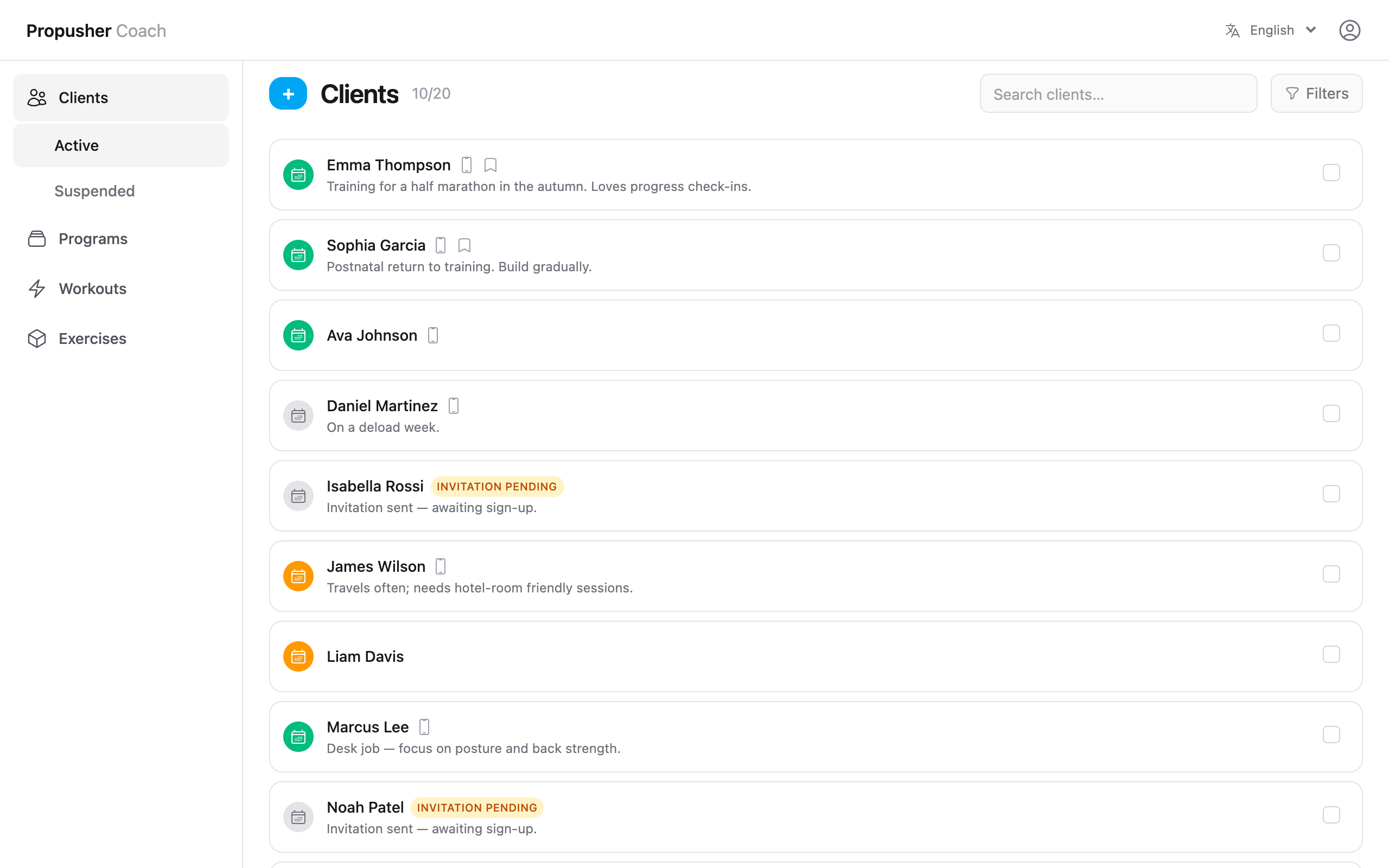
Clients connect to you through an email invitation. Each connection takes one client slot — suspend or delete clients to free slots up.
Open the Clients page and press the + button.
Enter the client's email. Optional: add a private name and note so you can recognise them later in the list.
Send the invite. Your client receives an email with a link to install the app and join your roster.
To free a slot without losing history, open the client's menu (⋯) and choose Suspend. The client returns when you unsuspend — all their workouts and history are kept.
Mistyped the email?
Invitation emails can't be edited. Delete the pending invite from the Clients page and send a new one.
Building your exercise library
Your library is what powers every workout. Pull from a growing public library, modify what you copy, or build exercises from scratch with your own 3D animation.
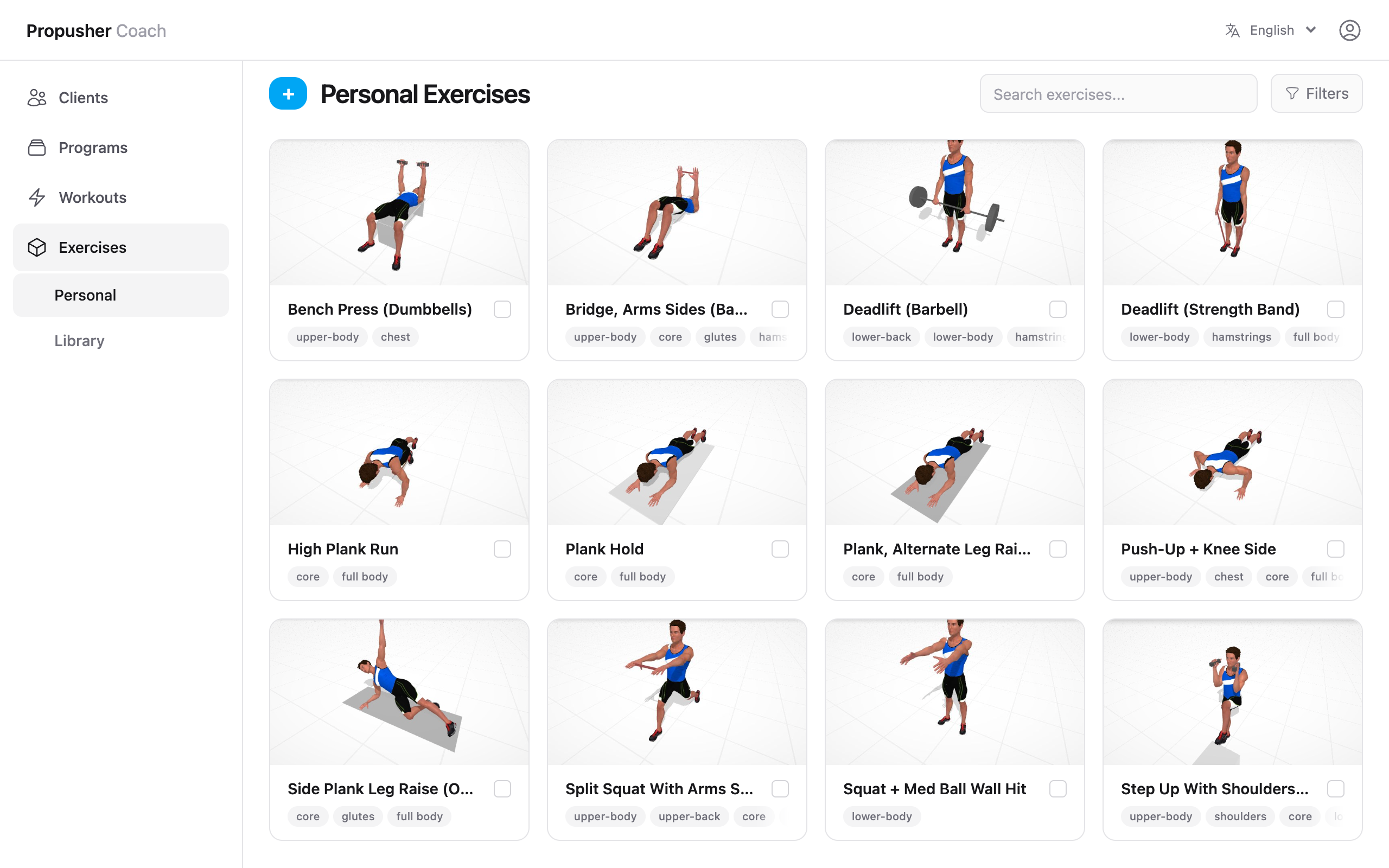
Go to Exercises → Library to browse public and featured exercises.
Press the copy icon on any card to add it to your personal library. You can edit your copy freely without affecting the original.
Open an exercise from your library to rename it, change muscle groups, edit the description, or replace the animation.
To create a brand-new exercise, press the + button on the Exercises page and fill in title, description, and muscle groups.
Bookmark exercises you reach for most — they jump to the top of the picker when you build workouts.
Exercise variations
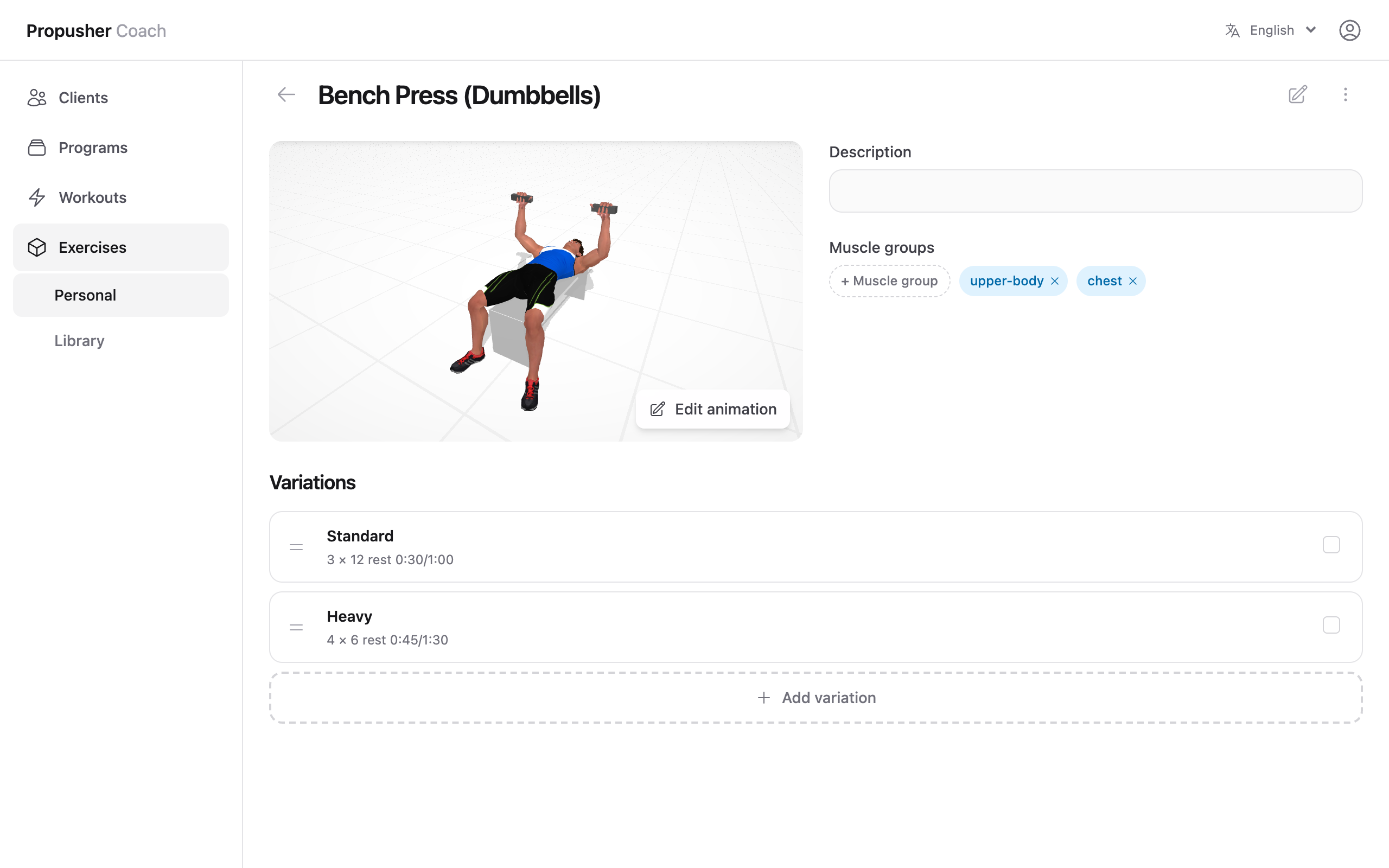
Most exercises have multiple useful forms — same movement, different sets, reps, weight, or tempo. Save those as variations so you don't re-enter parameters every time you add the exercise to a workout.
Open an exercise from your library and scroll to the Variations section.
Press + to add a variation. Give it a recognisable name — for example "warm-up set" or "heavy day".
Set sets, weight, intensity, rest, and the type-specific value (reps, duration, or distance) — whichever apply.
When you add this exercise to a workout, pick the variation by name and every parameter is pre-filled. You can still tweak any value for that specific workout.
3D animation tool
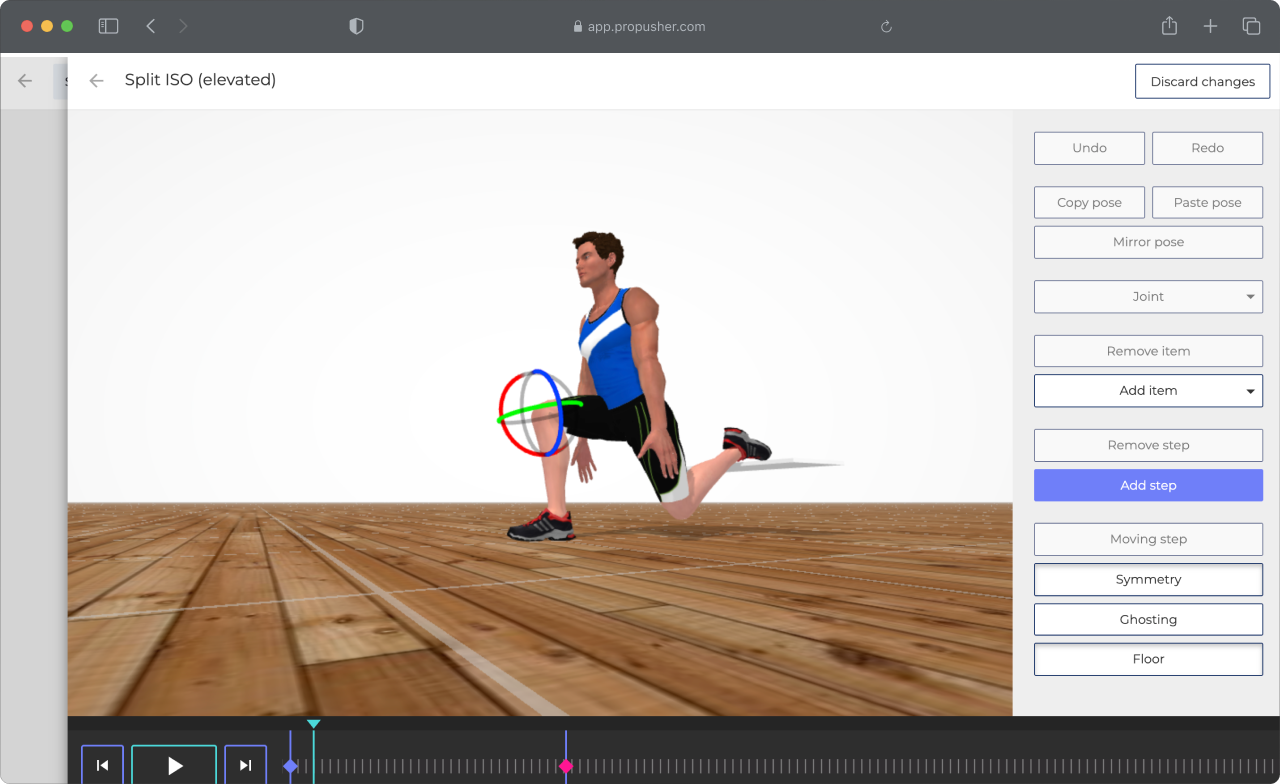
Every exercise can carry a 3D animation that your client sees in the mobile app. Use one from the public library or build your own — frame by frame, joint by joint, with the tool, floor, and view your client needs.
Open an exercise → press the pencil icon next to the preview to launch the animation editor.
Use the timeline at the bottom to step through frames. Click and drag joints on the body model to pose each keyframe.
Use the right panel to add or remove keyframes, switch tools (band, dumbbells, barbell, ball), and set the floor or wall.
Press Save. The new animation appears immediately in every workout that references this exercise — for you and for your clients.
Creating workouts
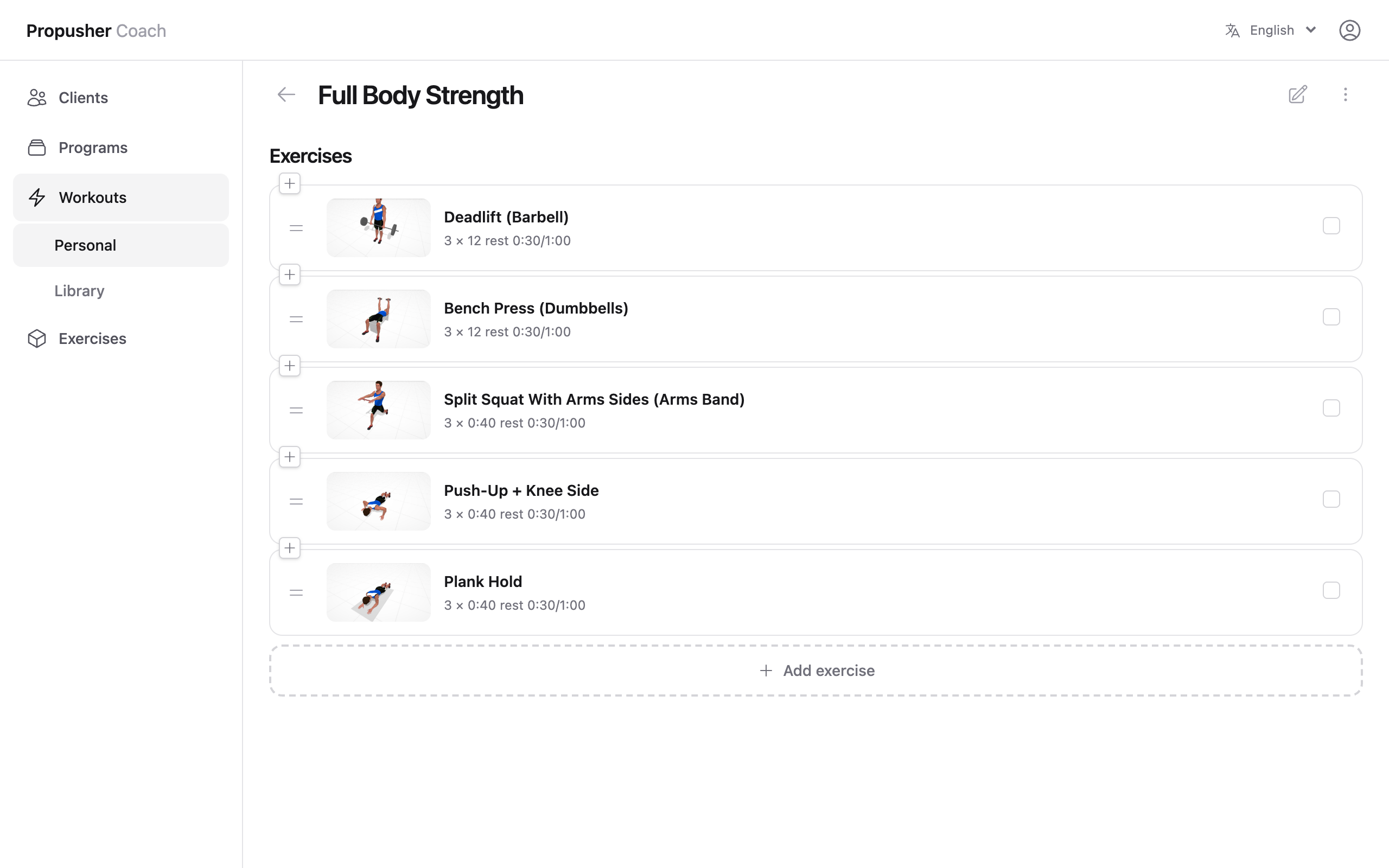
A workout is an ordered list of exercises with parameters. Build reusable templates on the Workouts page, or build one directly on a client's calendar when it's a one-off.
Go to Workouts and press +. Give it a title (e.g. "Lower body strength").
Press Add exercise to open the picker. Toggle between your library and the public library, search by name or muscle, then tap an exercise to add it.
Fill the parameters that matter — sets, reps, weight, duration, rest. Leave the rest blank.
Drag exercises to reorder. Use the checkbox bar at the bottom to bulk-duplicate, delete, or save a selection as a Block for reuse in other workouts.
Click an exercise to open its side panel and add a description your client will see on their phone.
What each parameter means
Sets
How many rounds the client performs.
Type
Reps, Duration, or Distance — pick the one that fits the exercise.
Weight (kg)
Resistance per set, in kilograms.
Intensity
Target effort. Choose <strong>%</strong> (of 1RM) or <strong>bpm</strong> (tempo).
Rest between sets
Pause between sets within this exercise.
Rest after
Pause after the exercise finishes, before the next one.
Sharing workouts with clients
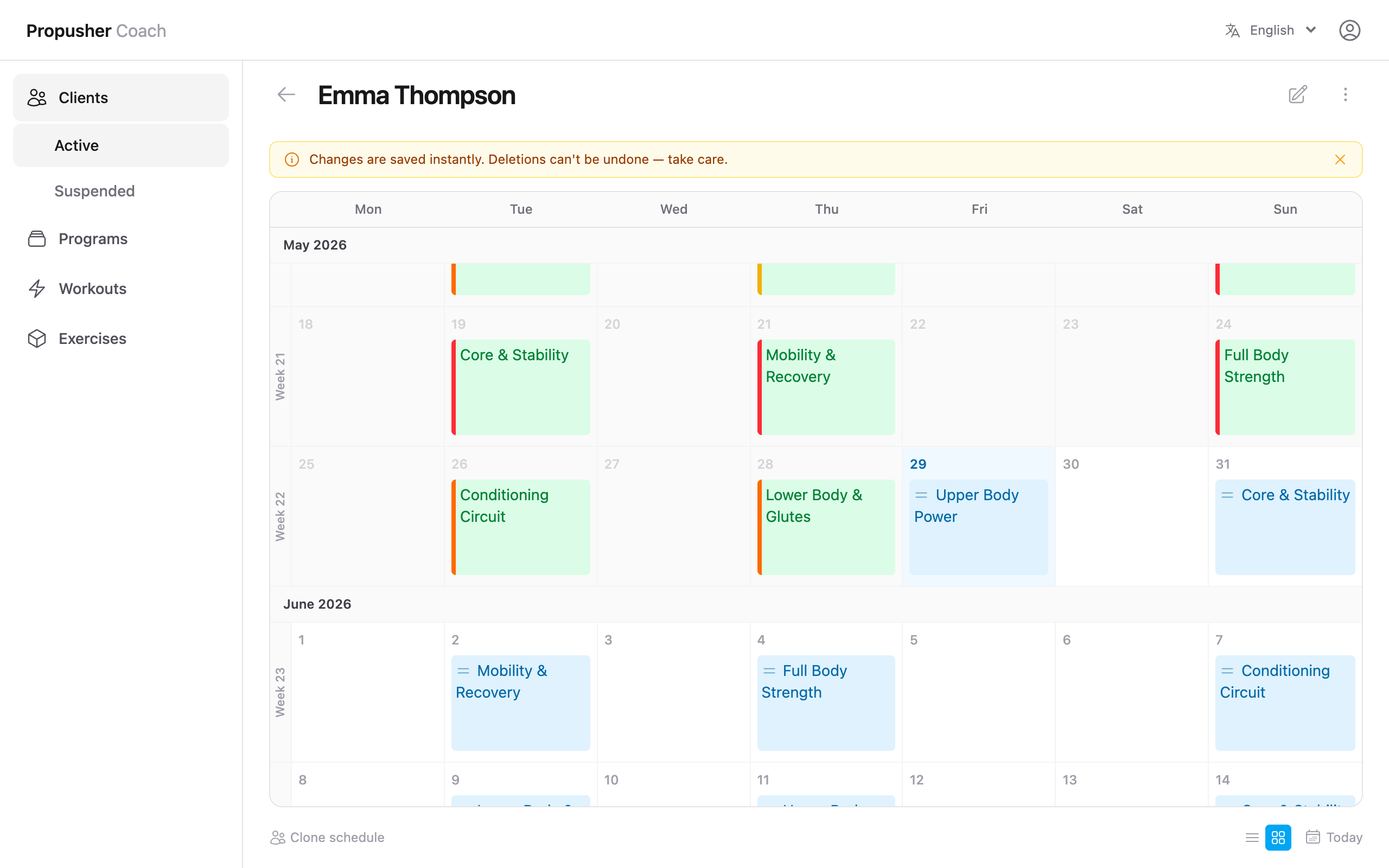
All client work happens on the Calendar. Click a day and pick a workout from the list — it saves and syncs to the client's phone automatically, usually within a few seconds.
Open Clients → choose a client. You land on their calendar.
Click the day you want a workout on. A panel opens — search and pick a workout (or a whole program), or add a one-off custom workout.
Add the same workout to more days to repeat it. To move a workout you've already scheduled, drag it from one day to another.
Click any scheduled workout to open and edit it for that specific day — changes don't affect the template.
Use Clone schedule at the bottom to copy a date range to another client in one step.
Calendar colour key
Today's cell is highlighted sky-blue. Past days fade to grey. A scheduled workout sits on a sky-blue pill, turns green once the client logs it as done, and turns red if they skip it.
Programs (weekly templates)
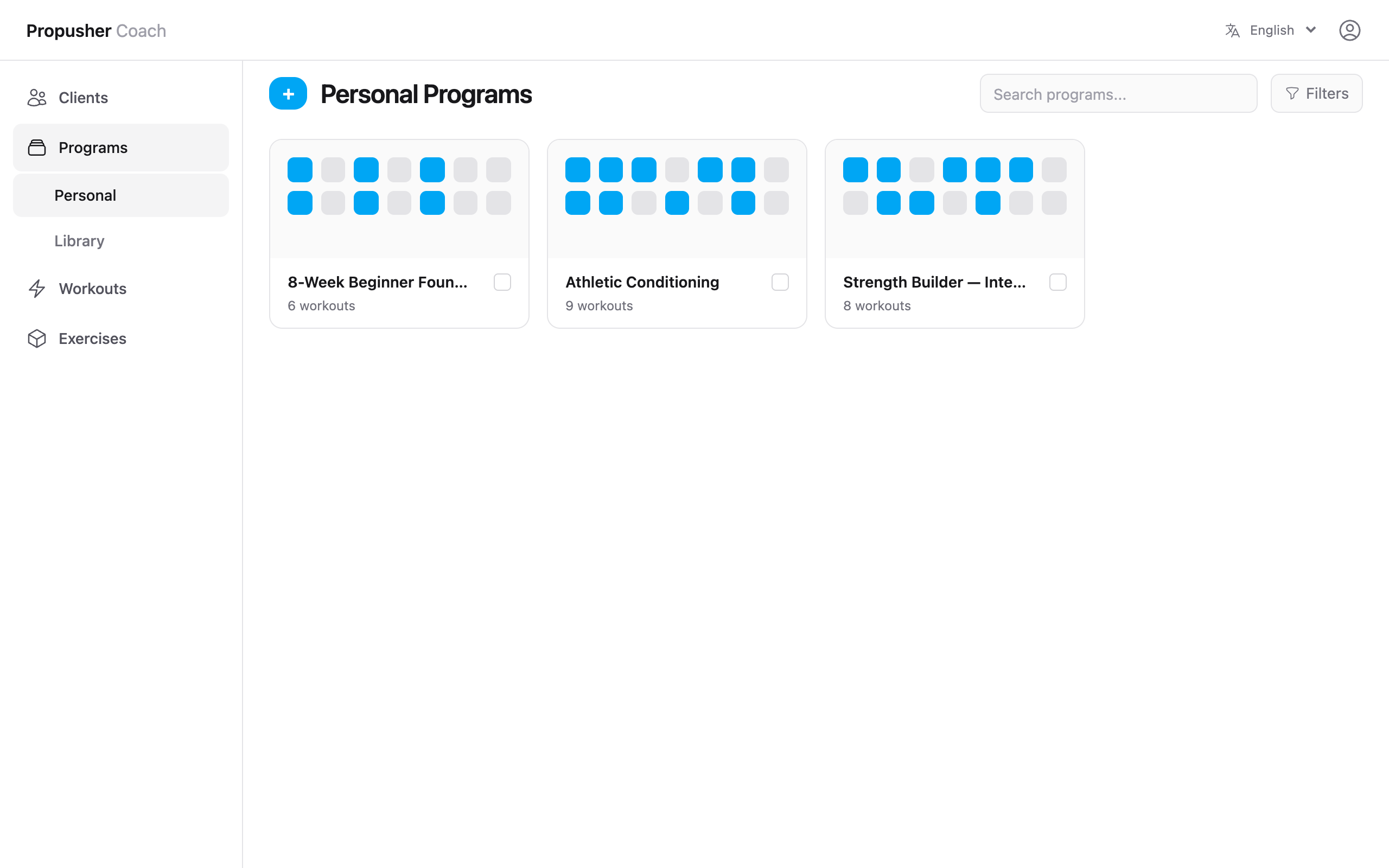
A program is a 7-day template — a recurring week you can apply to multiple clients. Useful for off-season blocks, rehab phases, group cohorts, or any plan you'd otherwise re-build by hand for every client.
Go to Programs → +. Click each day and pick workouts to build out the week.
Apply the program to a client's calendar starting from any date. Each week of the program lays out in order.
Edit the program later if needed. Weeks already on calendars are not retroactively changed — only future applications use the new version.
Client mobile app
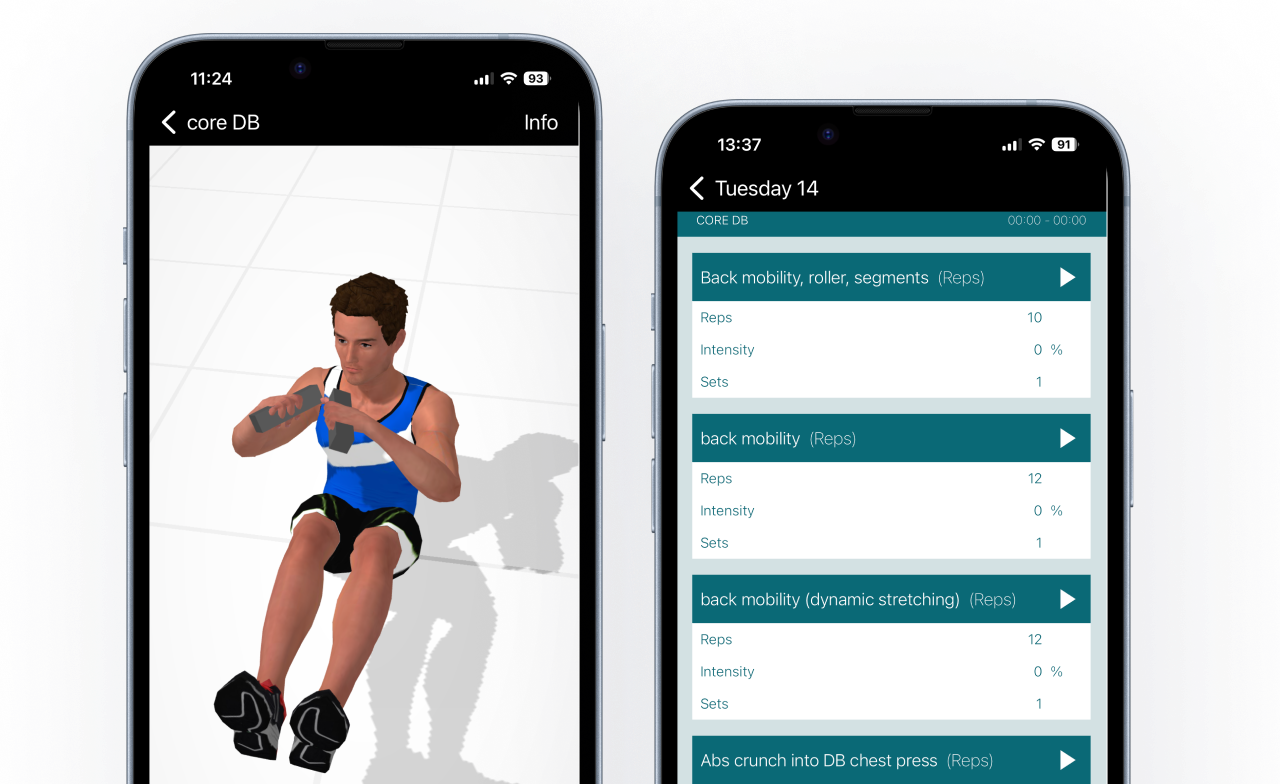
Your clients install Propusher from the App Store or Google Play. They sign in, accept your invitation, and their assigned workouts appear immediately — no extra setup.
Client downloads the app and creates an account with the email you invited.
On the home screen they see today's workout and the week's exercises.
Tapping an exercise plays the 3D animation and any timers you've set.
After each set the client logs reps and weight, and gives the workout a perceived-exertion rating (Very easy → Max effort) when done. The data syncs back to your dashboard immediately.
Completed workouts turn green on your calendar, skipped ones turn red — so you can see progress at a glance.
Account & billing
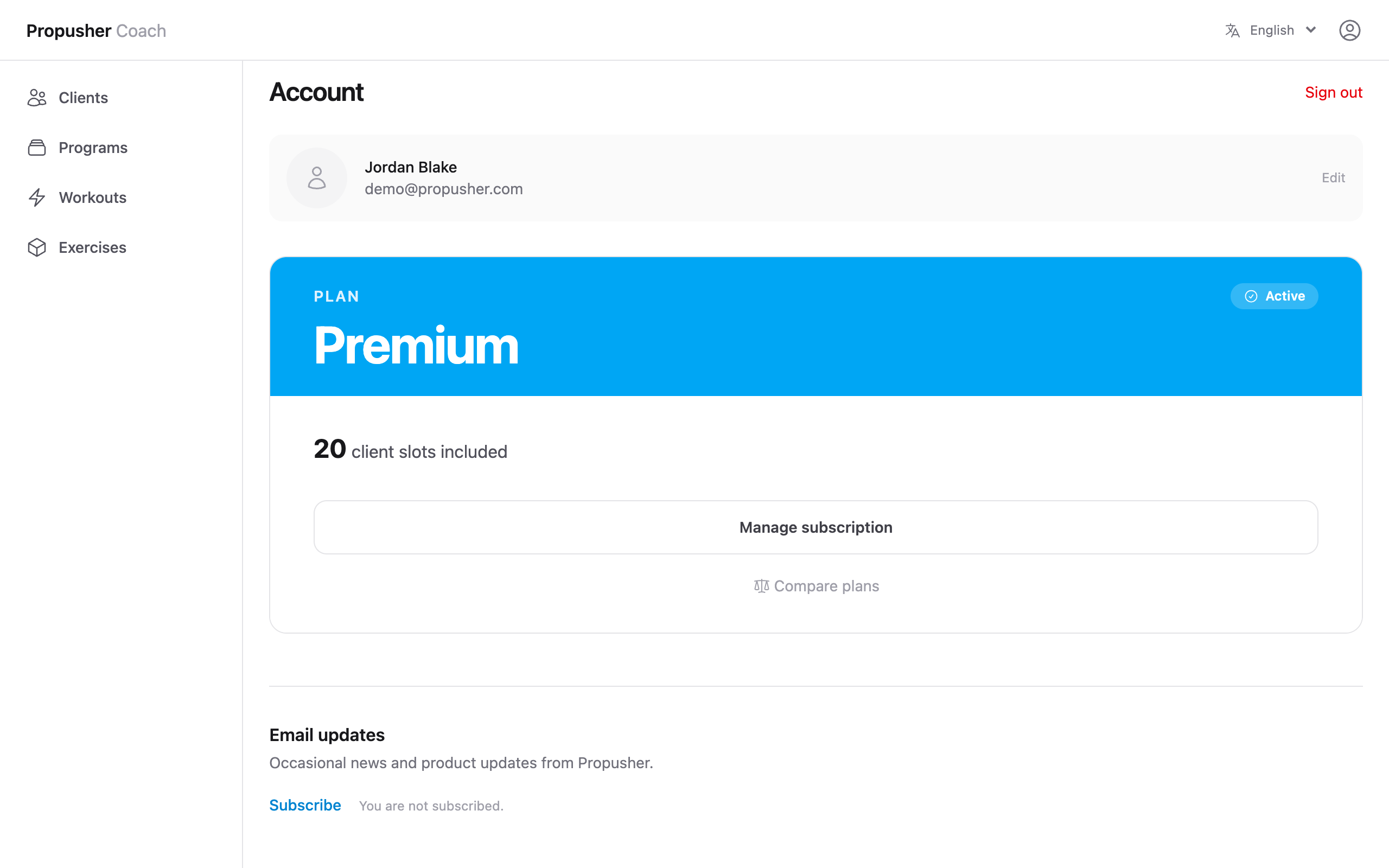
Manage your plan, profile, and integrations from the Account page.
Plans & slots
Free accounts include three client slots. Premium unlocks more slots and advanced features. Manage from Account → Manage Subscription.
Profile
Your name, photo, and description are visible to clients in their app. Edit them at Account → Edit profile.
Timezone
Set your timezone so client calendars show the right local time. Weights are in kilograms throughout the app.
Delete account
Account → Delete account. Removes your profile, clients, and all associated data. This cannot be undone.
Frequently asked questions
Quick answers to the things coaches ask us most. Can't find what you need? Email support@propusher.com.
I mistyped a client's email — how do I change it?
Invitation emails can't be edited. Delete the pending invite from the Clients page and send a new one.
How many clients can I have on the free plan?
Three client slots. Suspending a client frees their slot without losing history — useful if you rotate clients in and out.
What happens when I suspend a client?
Their calendar stops syncing and they can no longer see assigned workouts in the app, but everything you've built for them is preserved. Unsuspend at any time to restore the connection.
Can I move a workout from one day to another?
Yes — drag it on the calendar from the source day to the destination day. The change syncs to the client immediately.
Will edits to a workout template change scheduled workouts?
No. Once a workout is added to a calendar it becomes an independent copy. Edit the calendar copy directly, or add the updated template to the day again.
Can clients see workouts before the scheduled date?
Yes. Clients see the whole week ahead so they can prepare equipment and plan their schedule.
Can two clients share the same program?
Yes. Apply the program to each client's calendar separately. After that, edits to one client's calendar don't affect the other's.
Does the 3D animation play offline in the mobile app?
Yes. Once a workout is synced, animations, metronome, and timers work without a network connection.
Can I print a client's schedule or a single workout?
Yes. On the client calendar open the ⋯ menu → Print. Individual workouts have their own Print option inside the workout's ⋯ menu.
Which units does Propusher use?
Metric — weight in kilograms and distance in metres throughout the app.
How do I delete my account?
Account → Delete account. This removes your profile, clients, and data permanently.
I forgot my password — what now?
Use the "Forgot password" link on the sign-in page. You'll receive a reset email within a minute or two.
My client didn't receive the invitation email.
Ask them to check spam first, then resend from the Clients page. If it still doesn't arrive, contact support and we'll get them connected manually.
Can I edit a public-library exercise?
Copy it to your library first (the copy icon on the card). You can edit your copy freely; the public original stays untouched.
What happens to client data when I suspend or delete them?
Suspended clients keep all data — workouts, logs, history — and you can unsuspend any time. Deleted clients are removed permanently, including their workout history with you.